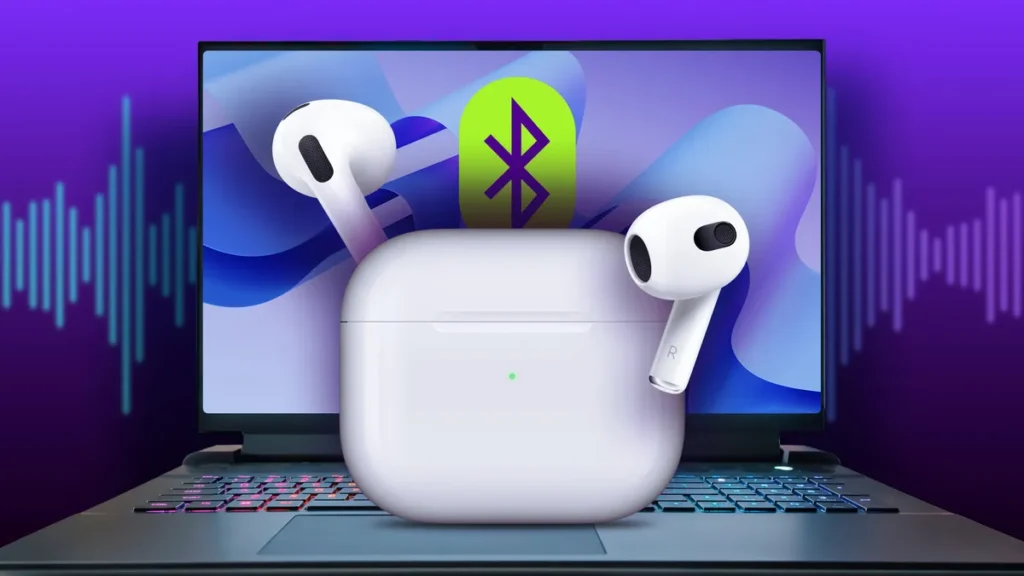
Whether you want better audio for work calls, online classes, or entertainment, pairing AirPods with an HP laptop is a simple way to upgrade your listening experience.
Thanks to Bluetooth technology, AirPods can connect easily to Windows laptops—not just Apple devices.
This guide explains how to connect AirPods or AirPods Max to an HP laptop, what you need before pairing, and how to fix common connection problems.
What You Need Before Connecting AirPods to an HP Laptop
Before starting the pairing process, make sure the following requirements are met:
1. Charge Your AirPods
AirPods must have enough battery power to enter pairing mode.
- For standard AirPods, check the indicator light on the charging case.
- For AirPods Max, check battery status by bringing them near a paired iPhone or charging briefly.
2. Enable Bluetooth on Your HP Laptop
Your laptop must have Bluetooth turned on.
How to check:
- Open the Start menu
- Go to Settings > Bluetooth & devices
- Toggle Bluetooth On
Most modern HP laptops running Windows include Bluetooth by default.
Also read: You’re Killing Your Laptop Battery: The #1 Mistake Experts Say to Stop Immediately
How to Pair AirPods With an HP Laptop
Connect Standard AirPods (AirPods, AirPods Pro)
- Open your AirPods charging case (leave the AirPods inside).
- Press and hold the setup button on the back of the case.
- When the light flashes white, your AirPods are in pairing mode.
- On your HP laptop, open Settings > Bluetooth & devices.
- Click Add Bluetooth or other device → Bluetooth.
- Select your AirPods from the list and wait for Windows to confirm the connection.
Connect AirPods Max to an HP Laptop
- Hold your AirPods Max near the laptop.
- Press and hold the noise control button until the status light flashes white.
- On your HP laptop, go to Settings > Bluetooth & devices.
- Click Add Bluetooth or other device → Bluetooth.
- Select AirPods Max from the list to complete pairing.
Troubleshooting: AirPods Not Connecting to HP Laptop
Even though the process is simple, issues can occasionally occur. Here’s how to fix the most common problems.
Also read: How to take a screenshot on laptop [2025]
AirPods Don’t Appear in the Bluetooth List
Solution: Reset your AirPods
- Place AirPods back in the charging case and close the lid.
- Wait 10–15 seconds.
- Open the lid and press the setup button until the light flashes white.
- Try pairing again.
AirPods Are Connected but There’s No Sound
Your laptop may still be using its internal speakers.
Fix audio output settings:
- Right-click the sound icon on the taskbar.
- Open Sound settings.
- Under Output, select your AirPods as the playback device.
AirPods Keep Disconnecting
If audio drops or the connection feels unstable, re-pair the device:
- Go to Settings > Bluetooth & devices.
- Find your AirPods and click the three-dot menu.
- Select Remove device.
- Restart Bluetooth and pair again from scratch.
Final Tips for a Better Connection
- Keep AirPods within a few feet of your laptop during pairing
- Turn off Bluetooth on nearby devices to avoid interference
- Update Windows regularly for improved Bluetooth performance
